

How to Automatically Find Similar Photos on iPhone?
Need to find similar photos on your iPhone? It doesn’t take long for them to pile up. While Apple’s Photos app can detect exact duplicates, it doesn’t automatically find photos that simply look alike. Fortunately, there are several ways to identify and remove similar photos. We’ll show you how to delete duplicate photos on iPhone and similar images, along with a few built-in tools that can help.
Can iPhone Automatically Find Similar Photos?
Not exactly. You can easily find duplicate photos iPhone, since it can automatically detect them, but it doesn’t include a dedicated tool for finding similar photos. Since iOS 16, Apple’s Photos app has featured a Duplicates album that identifies and groups exact copies of the same image. This works because duplicate photos share nearly identical file data. If two files match Apple’s criteria, they appear in the Duplicates album, where you can merge them with a tap.
Similar photos are different. They may show the same subject, scene, or moment, but they’re not identical files. A slight change in angle, facial expression, focus, lighting, or editing is enough for iOS to treat them as separate photos. Because of this, these images won’t appear in the Duplicates album, even if they look almost the same to you.
This often means users end up with dozens of almost identical shots that take up storage space but aren’t picked up by Apple’s duplicate finder.
How to Find Similar Photos on iPhone?
Now that you know the difference between duplicates and similar photos, let’s look at the available options. We’ll start with the easiest and most automated option. After that, we’ll cover a few built-in features that can help you locate similar photos manually and clean up your library at your own pace.
Method 1: Use an App to Find Similar Photos on iPhone
If your goal is to find similar photos as quickly as possible, a dedicated cleanup app is the best option. After testing many iPhone cleaner apps, Clever Cleaner remains one of our favorite apps for iPhone photo cleanup. It offers a great free experience, has a simple interface, and does an excellent job of identifying visually similar photos.
Its Similars feature scans your library and groups together duplicate photos on iPhone as well as images that appear visually related but are not exact copies. Instead of comparing hundreds of images manually, you get organized groups of similar shots along with a suggested Best Shot to keep. The app’s selections are often accurate, but you can always review everything yourself and choose a different photo if you prefer.
Here is how to delete duplicate photos and similar images with Clever Cleaner:
1. Download Clever Cleaner from the App Store.
2. Open the app and grant access to your photo library.
3. Wait for the initial scan to finish.
4. Tap Smart Cleanup to automatically move unnecessary similar photos to the app’s Trash.
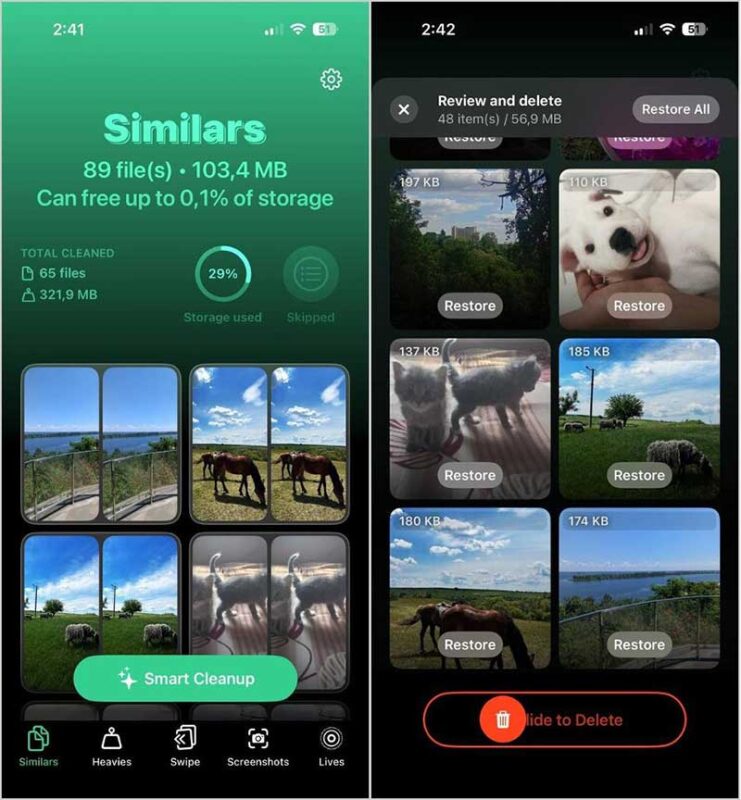
5. Or open individual groups and review them manually before deciding what to remove.
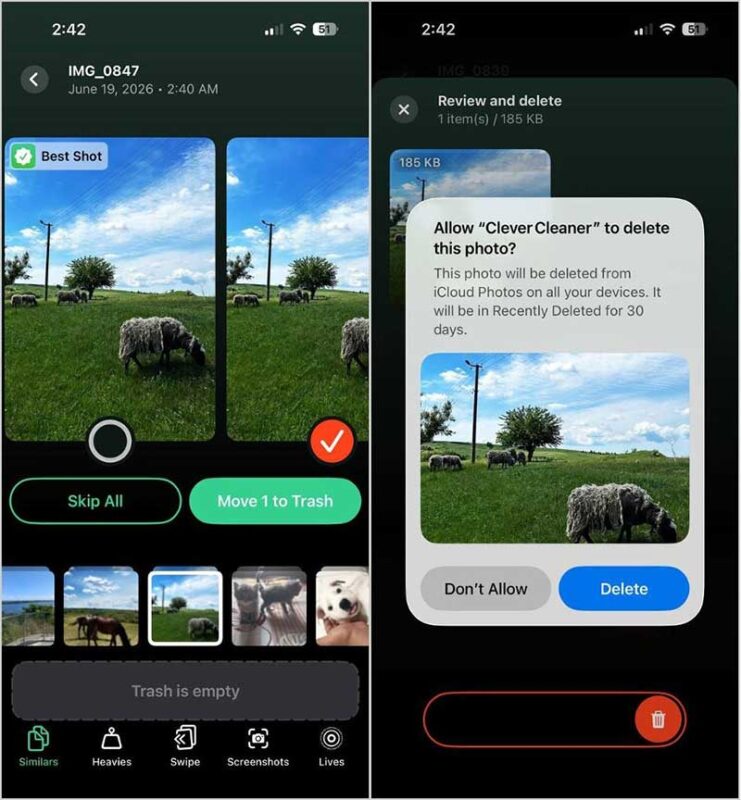
6. Confirm the cleanup.
7. Open the app’s Trash and empty it.
8. Visit Photos > Recently Deleted and permanently remove the photos if you want to reclaim the storage space immediately.
If storage cleanup is your main goal, Clever Cleaner also includes several additional tools:
- Screenshots collects screenshots and lets you remove them in bulk.
- Lives converts Live Photos into still images to reduce their size.
- Heavies sorts videos by size so you can quickly find the largest files.
- Swipe provides a fast way to review photos and remove unwanted images.
For large photo libraries, this method is usually much faster than relying solely on the built-in Photos app.
Method 2: Use Collections and Albums in the Photos App
The Photos app does not have a true similar-photo finder, but it can still help you narrow down your library. iOS automatically groups photos by people, places, dates, trips, and media types, so similar images often end up close to each other. This method works best for photos from the same event, vacation, selfie session, pet photoshoot, or location.
1. Open the Photos app.
2. Scroll through sections such as Recent Days, Trips, People & Pets, or Pinned Collections.
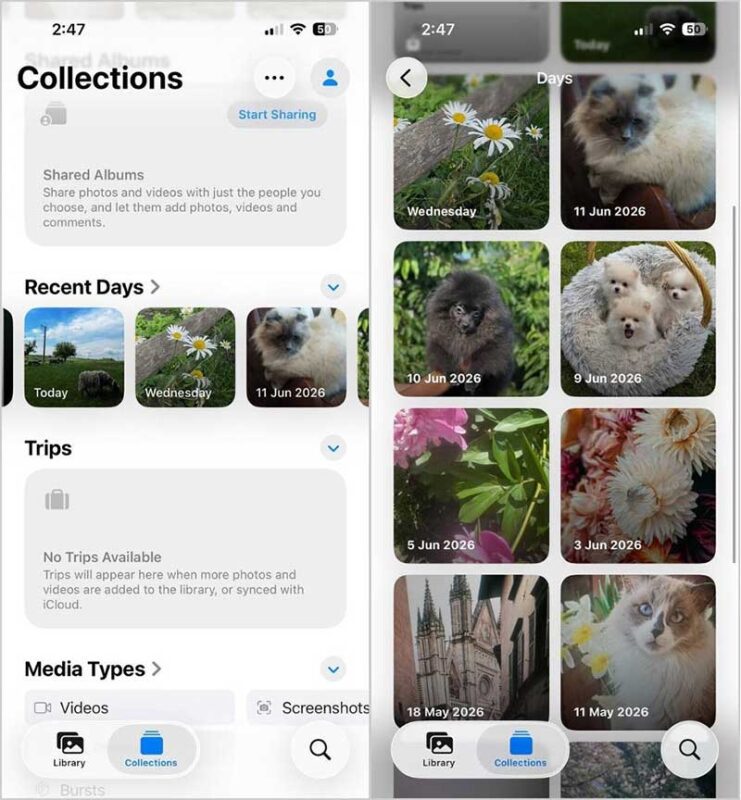
3. Open a collection that matches the photos you want to review.
4. Look for groups of images that show the same subject or moment.
5. Tap Select.
6. Choose the photos you do not want to keep.
7. Tap the Trash icon and confirm.
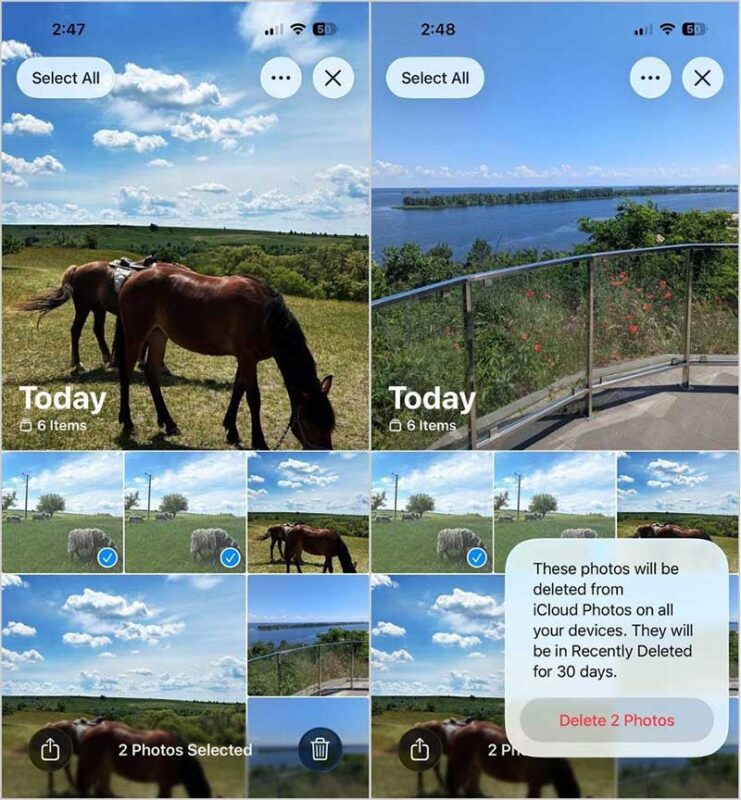
You can also use Albums for more specific photo types. Open Albums and check categories such as Selfies, Portrait, Live Photos, Panoramas, Screenshots, or Bursts. These albums are useful because similar photos often share the same format or camera mode.
Method 3: Use Search to Find Similar Photos by Subject
The Photos app Search feature can recognize people, pets, objects, places, scenes, and some events. It is not designed only for similar photos, but it can help you pull related images into one view. For example, if you took many photos of your dog at the park, several sunset shots, or multiple pictures from one trip, Search can help you find them faster.
Here is how to use it:
1. Open the Photos app.
2. Tap Search.
3. Enter a keyword, such as dog, beach, sunset, car, cat, food, or a person’s name.
4. Review the results and look for photos that appear nearly identical.
5. Tap Select.
6. Choose the weaker shots.
7. Tap the Trash icon and confirm deletion.
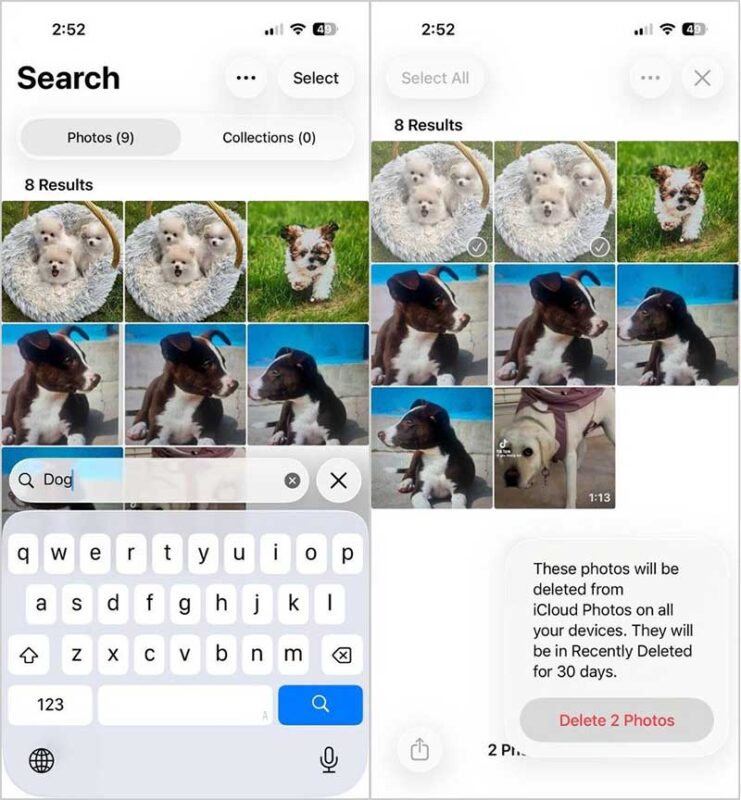
If the results are too broad, combine keywords. For example, search for dog park, beach vacation, New York sunset, or cat June 2024. More specific searches can make similar photos easier to find and compare.
Method 4: Use Burst Mode Albums to Find Similar Shots
Burst mode is one of the most common sources of similar photos because it captures many images within a few seconds. These photos are not duplicates, but they often look almost the same.
The Photos app lets you open each Burst, choose the best shots, and remove the rest.
1. Open the Photos app.
2. Go to Albums.
3. Scroll to Media Types.
4. Tap Bursts.
5. Open a burst set.
6. Tap Select.
7. Choose the photos you want to keep.
8. Tap Done.
9. Select Keep Only Favorites if you want to remove the rest of the burst.
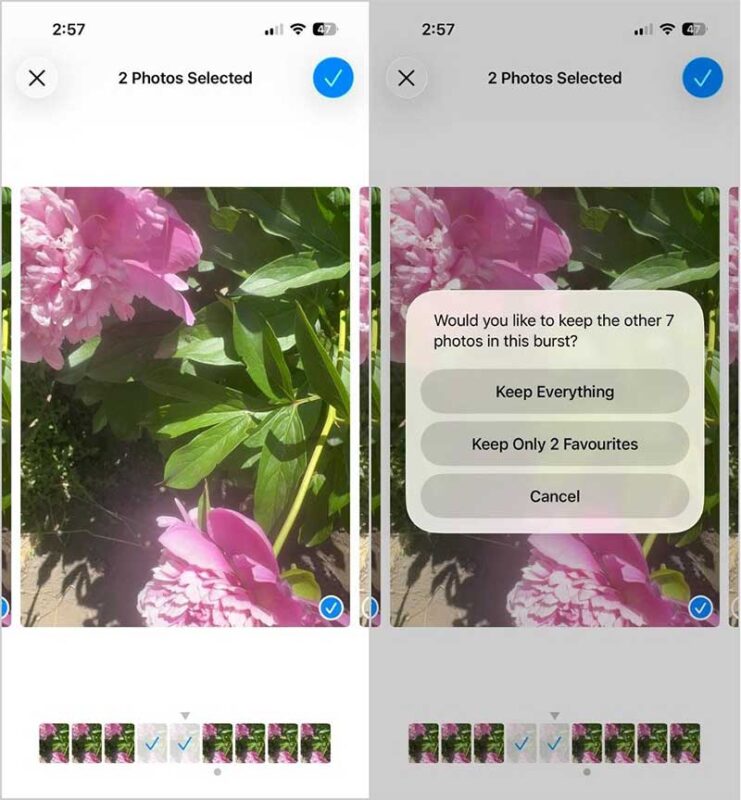
This is one of the easiest manual cleanups because the Photos app already keeps burst shots grouped together. If you often photograph moving subjects, pets, sports, or kids, this section is worth checking regularly.
Method 5: Organize Similar Photos on a Mac
If you also use a Mac, you can take advantage of a few extra organization tools that aren’t available on the iPhone. While the Photos app on macOS can’t automatically detect similar photos, it makes it much easier to sort large libraries and review groups of related images on a bigger screen. One of the most useful features is Smart Albums, which can automatically collect photos based on criteria such as date, location, keywords, camera model, or photo type.
1. Open the Photos app on your Mac.
2. Click File > New Smart Album.
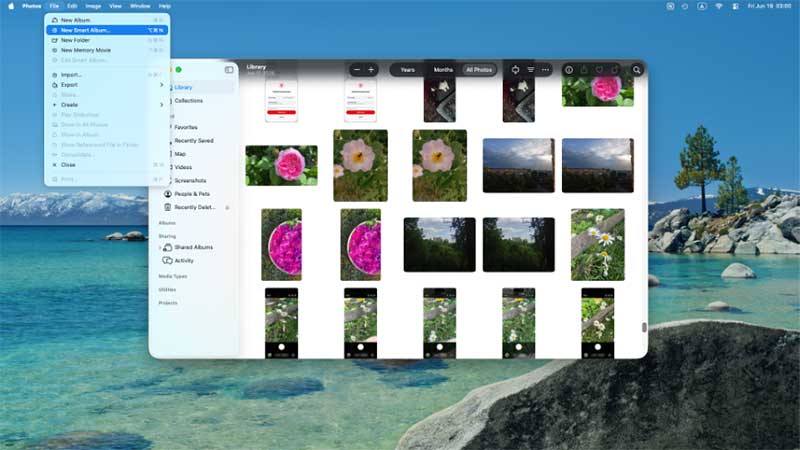
3. Give the album a name.
4. Choose the rules you want to use, such as a specific date range, location, keyword, or media type.
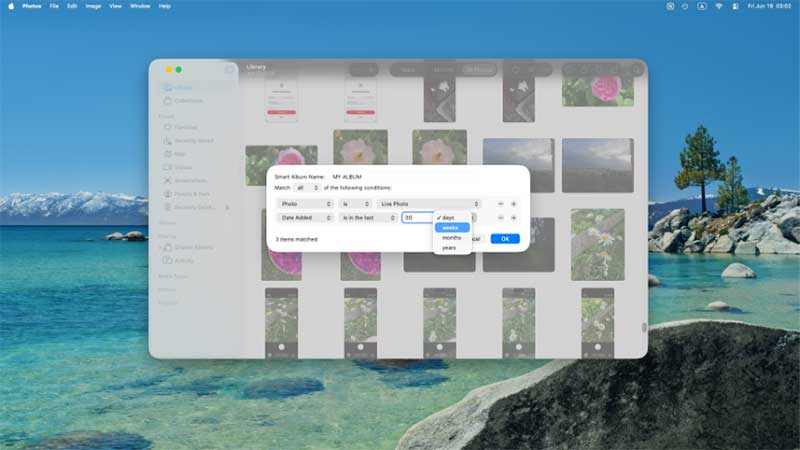
5. Click OK to create the album.
6. Review the photos that appear in the album and remove any similar shots you don’t want to keep.
Every time new images fit the criteria you’ve set, Smart Albums automatically update. They are therefore helpful for planning trips, recurring events, or sizable collections that would be challenging to handle by hand. Although this method still requires you to compare photos yourself, many users find it much faster than sorting through a large photo library directly on an iPhone.
Additional Tips to Prevent Similar Photos From Piling Up
Now that you know how to locate similar images on your iPhone, we’d like to offer some additional advice to help you maintain the organization of your photo collection. Similar photos often appear after vacations, family gatherings, concerts, or any situation where you take multiple shots of the same subject.
A few simple habits can reduce clutter and save you time in the future:
- Review photos after trips, events, and photo sessions. It is easier to choose the best shots when the details are still fresh.
- Check Burst photos regularly and keep only your favorite images. A single burst can contain dozens of nearly identical photos.
- Turn off Live Photos when you do not need them. This reduces the number of similar images and helps save storage space.
- Take a moment to delete unwanted photos immediately after you capture them instead of leaving them for later.
- Create albums for important events, projects, or vacations. Organized libraries are much easier to review and clean.
- Remove screenshots, downloaded images, and temporary files once they no longer serve a purpose.
- Set aside a few minutes every month for a quick photo cleanup. Small, regular cleanups are much easier than sorting through thousands of photos at once.
- Monitor your available storage. A rapidly growing photo library is one of the most common reasons iPhone storage fills up.
Finally, photo management becomes much easier when you clean your library regularly. Automatic tools can speed up the process, while Apple’s built-in features can help you stay organized. No matter which option you choose, a little maintenance now can prevent a much larger cleanup later.
Final Thoughts
If your main goal is to delete duplicate photos iPhone you can typically rely on the built-in Duplicates album. However, for photos that look similar visually, you will need other tools or a more hands-on review process.
A specialized cleanup app is the fastest option for the majority of people. As mentioned earlier, Clever Cleaner remains one of our favorite iPhone cleanup apps because it can automatically group similar photos, recommend the best image to keep, and make the whole cleanup process easy. However, if you prefer a manual approach, Apple’s built-in Albums, Search, and Burst features can still be helpful.
Regardless of the approach you take, routine photo-library upkeep can minimize clutter, free up storage space, and simplify your library’s management and browsing.
FAQ
Does iPhone have a similar photos finder?
No, iPhone doesn’t have a built-in feature specifically for finding similar photos. The Photos app can detect exact duplicates in the Duplicates album, but it won’t automatically group photos that look alike but aren’t identical. As we showed, you can use features like Search, Albums, or Burst photo review to find similar shots manually. If you want the process to be automatic, you’ll need a third-party app that can analyze your library and group visually similar images together.
What’s the difference between similar and duplicate photos?
Duplicate photos are exact copies of the same image, which is why the Photos app can detect them automatically. Similar photos may look almost identical but have small differences, such as a different angle, expression, lighting, or edit. The Duplicates album only detects true duplicates. Similar photos usually require manual review or a third-party app that can analyze the visual content of your images.
Will deleting similar photos remove them from iCloud?
Yes, if you use iCloud Photos, deleting a photo from your iPhone will also remove it from iCloud and any other Apple devices connected to the same account.
However, the photo isn’t erased immediately. It is first moved to the Recently Deleted album, where it remains for 30 days on both your iPhone and iCloud. During that time, you can restore it if you change your mind. The photo is permanently removed only when you empty the Recently Deleted album or the 30-day recovery period expires.
Is it Safe to use AI photo-cleaning apps?
Yes, AI photo-cleaning apps from the App Store are generally safe to use, as Apple reviews all apps before they are published. However, privacy practices can vary between apps. Before granting access to your photo library, check the app’s privacy policy, reviews, and App Store listing. Some apps process photos on remote servers, while others perform all analysis directly on your device. If privacy is important to you, choose an app that performs photo analysis locally and doesn’t upload your images to the cloud.
